Skip to product information
1 of 14

My Store

4K HDMI Splitter 1 in 4 Out – 4K@60Hz, 1080p@240Hz, Auto Downscaling, VRR/ALLM

4K HDMI Splitter 1 in 4 Out – 4K@60Hz, 1080p@240Hz, Auto Downscaling, VRR/ALLM

Regular price $49.97 USD
Regular price $59.99 USD Sale price $49.97 USD
Sale Sold out
Shipping calculated at checkout.
Version
Quantity
12-month Warranty
Tax-free US
FCC Certified
  • Mirror Only (No Extend Mode): This HDMI splitter duplicates one HDMI source to four displays with identical content. It does NOT support extended desktop mode. Ideal for multi-screen setups in offices, classrooms, and retail environments.
  • Auto EDID & Downscaling: Smartly adjusts resolution for each display to ensure the best match and avoid black screens. (720p or 480p downscaling NOT supported).
  • Ultra 4K Video Performance: Supports up to 4K@60Hz and 1080p@240Hz for smooth movies, streaming, and gaming; delivers sharp visuals and stable signal transmission with 18Gbps bandwidth.
  • Wide Device Compatibility: Works with PS5, Xbox, Nintendo Switch, HDTVs, monitors, amplifiers, streaming devices, and gaming consoles; supports HDR, Dolby Vision, Atmos, and HDCP 2.2 (not compatible with eARC systems).
  • What’s in the Box: 1x UHD-1440X HDMI Splitter, 2x Double-sided Tapes, 1x DC 5V Power Adapter, 1x User Manual.
  • Please note: The listed price does not include any local taxes, VAT, duties, or import fees, which may be charged upon delivery.
View full details

Video

Below for your information:

Version Bandwidth Supported Resolution Corresponding Model
HDMI 2.1
Bandwidth 48Gbps
8K (7680x4320) @60
4K (3840x2160) @60~240 (DSC)
2K (2560x1440) @60~120
1080P (1920x1080) @60~240
UHD-1280 / UHD-1480
HDMI 2.0
Bandwidth 18Gbps
4K (3840x2160) @60
2K (2560x1440) @60~120
1080P (1920x1080) @60~240
UHD-1240 / UHD-1440

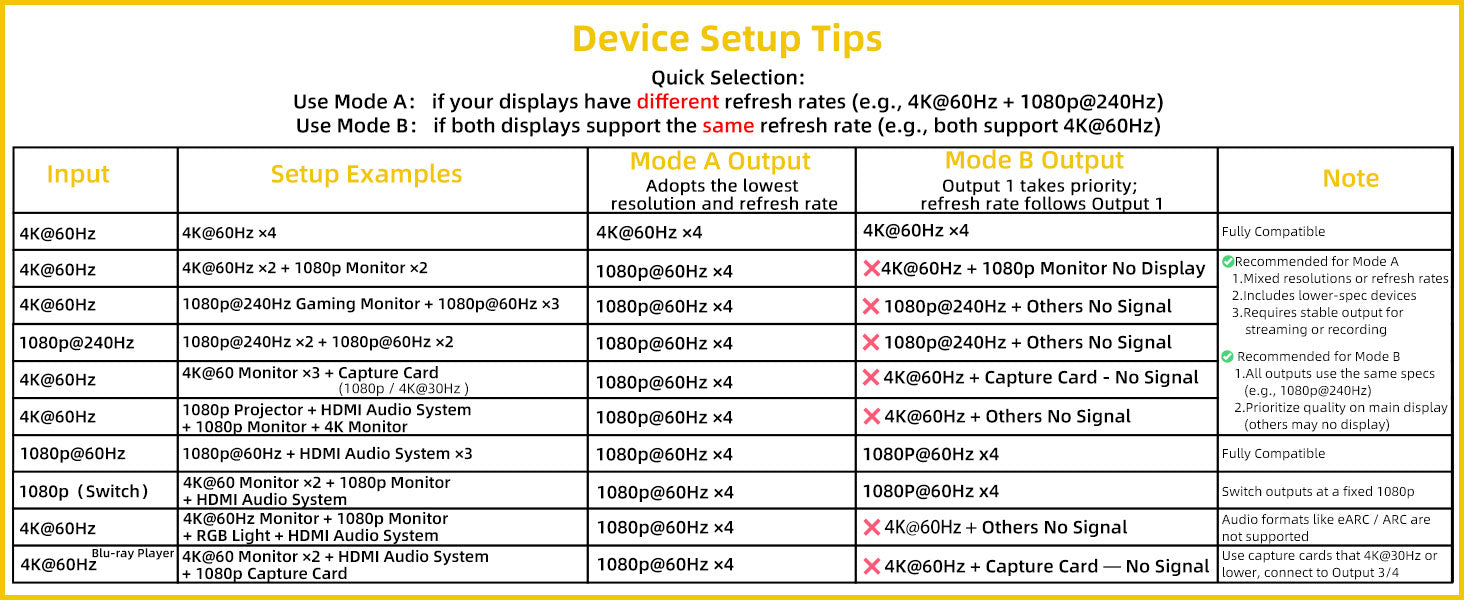
About A/B Mode

To view the full list of connection reference examples and instructions, please click the button below to see the document.

Product Description

FAQ

Why the HDMI SPLITTER connected to My sound bar, and it did not work?

Our splitter only supports HDMI input and does not support ARC ports. If your soundbar only has an ARC port, it will not be compatible with our splitter.  

Does the product flicker during use?

Troubleshooting methods:

  1. Lower the resolution
  2. Try using a shorter HDMI cable
  3. Start by connecting only one cable and test it

No Picture When Switching (1-2 seconds of no picture when switching signal sources)

1. Directly Connect the Device to the TV

  • Connect the HDMI device directly to the TV’s HDMI input port, bypassing any intermediary devices (such as an HDMI switch). Check if the no picture issue still occurs. If there is no issue with a direct connection, the problem may be with the switch or other devices.

2. Replace the HDMI Cable

  • Replace the HDMI cable and see if this resolves the issue. Choose a high-quality cable that meets the HDMI 2.0 or HDMI 2.1 standards, as this helps ensure stable signal transmission and reduces latency.

3. Replace the Signal Source Device

  • Try switching to a different HDMI signal source (e.g., a different device or a different HDMI port) and check if the no picture issue still appears. If only one specific signal source device causes the no picture issue, the problem may be with the device's output.


4. Adjust the HDMI Signal Source Output Settings

  • Ensure that the signal source device (such as a gaming console, set-top box, etc.) is set to a resolution compatible with the TV. A resolution that is too high or an unsupported refresh rate can cause no picture. Adjust the device's resolution to match the TV's display capabilities.

No Picture During Normal Use (Occasional no picture during regular viewing)

1. Directly Connect the Device to the TV

  • Connect the HDMI device directly to the TV, bypassing the HDMI switch, and check if the no picture issue occurs. If there is no issue, the problem may be with the HDMI switch or its settings.

2. Replace the HDMI Cable

  • Try replacing the HDMI cable with a new one and check if there is any improvement. Using cables that meet HDMI 2.0 or HDMI 2.1 standards can help improve signal stability and reduce no picture issues.

3. Replace the Signal Source Device

  • Replace the signal source device (such as a gaming console, set-top box, etc.) by plugging it into a different HDMI input port. Check if the no picture issue still occurs. If only a specific device causes the no picture problem, the issue may be with the device itself.

4. Check Power Supply

  • If the HDMI device requires external power (such as some gaming consoles or set-top boxes), ensure that the power supply is stable. Unstable voltage could cause the device to malfunction, leading to no picture.


5. Check for Electrical Interference

  • Verify if there are any nearby electronic devices (such as wireless routers, Bluetooth devices, etc.) that might be causing interference with the HDMI signal. Signals from these devices could disrupt HDMI stability, resulting in no picture.

6. Test Different HDMI Input Ports

  • Try plugging the HDMI device into other HDMI input ports on the TV to see if the no picture issue still occurs. Some HDMI ports may have poor contact or hardware malfunctions.

7. Check If the Device Has Been Continuously Powered On for Extended Periods 

  •  Determine whether the device has been continuously powered on for an extended period. If restarting the device resolves the issue, try turning off and unplugging the device for a reboot to see if the problem persists.