Which splitter do I need?
-
First, check that a splitter is what you want. A splitter takes one source and shows the same picture on several displays at once. If you want to connect several sources to one display, you need a switch instead.
Two displays
UHD-1280 - 1 in / 2 out, HDMI 2.1, up to 8K@60Hz or 4K@120Hz
UHD-1240X - 1 in / 2 out, HDMI 2.0, up to 4K@60Hz
Three or four displays
UHD-1480 - 1 in / 4 out, HDMI 2.1, up to 8K@60Hz or 4K@120Hz
UHD-1440X - 1 in / 4 out, HDMI 2.0, up to 4K@60Hz
Several sources into one display
UHD-2180 - a bi-directional switch: 2 in / 1 out, or reversed as 1 in / 2 out with one display active at a time. Up to 8K@60Hz.
The cable matters as much as the box. 8K@60Hz and 4K@120Hz need an HDMI 2.1 Ultra High Speed 48 Gbps cable: our UHD-10KB. The 6.6 ft suits most setups.
About A/B Mode
-
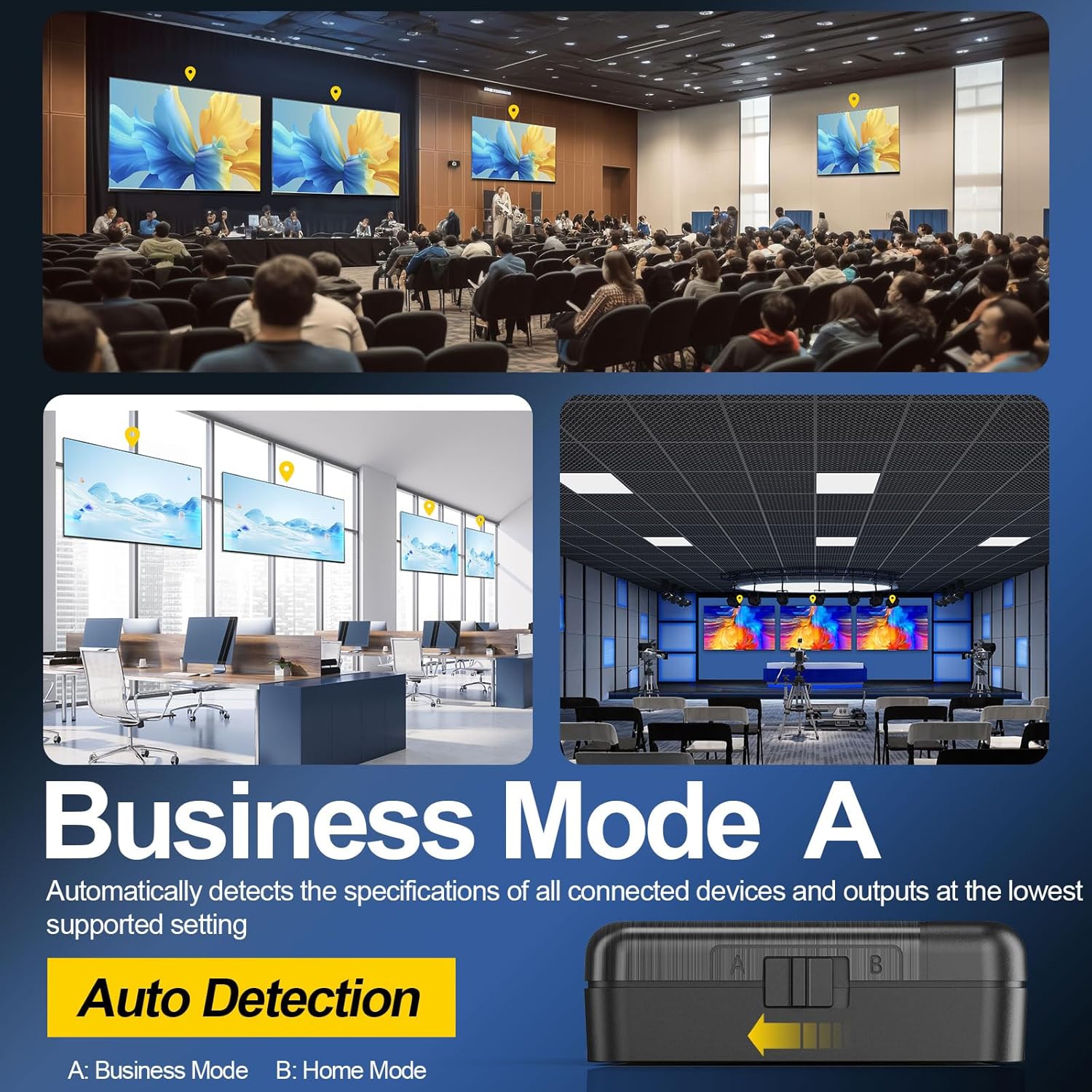
Business Mode (A): Auto Detection
Automatically detects the specifications of all connected devices and outputs at the lowest supported setting, ensuring reliable video and audio performance.
Use Cases:
- You are uncertain about the specifications of your display devices, including supported resolutions, refresh rates, and audio channels for each device
- You do not need the auto downscaling feature
- Use this mode if there is no sound or video when operating in Home Mode (B)
-
Home Mode (B): Auto Downscaling
This mode optimizes the output for multiple devices by copying the EDID from the first port.
Use Cases:
You are familiar with the specifications of your display devices, including supported resolutions, refresh rates, and audio channels, and you require the auto downscaling feature.
Connection Guidelines:
- Ensure that you know the specifications (resolution, refresh rate, and audio channels) of all devices
- Connect the highest-spec device to output 1 port. Connect all other devices to output 2, output 3, etc. The splitter will copy the video and audio source information from output 1.
- After completing the connections, restart the splitter to apply the new mode.
Notes:
1.Video can be downscaled, but audio cannot.
2.Downscaling only works when the source resolution divides evenly into the display's resolution. For example, 8K UHD (7680x4320) downscales to 4K (3840x2160) or to 1080p (1920x1080).
3.A 4K@30Hz display will show 1080p@60Hz when the source content is 4K@60Hz.
4.Downscaling to 720p is not supported.
5.Frame rate conversion (for example 60Hz to 30Hz) is not supported.
6.If there is no sound or video, please verify the device specifications or switch to Business Mode (A).
Troubleshooting: no picture or no sound
-
Important: an HDMI splitter always shows the same picture on every display. It cannot extend your desktop or show different content on each screen. To extend your desktop, use your PC's graphics card or an external MST device.
Each display can still run at its own resolution - for example a 4K TV on one output and a 1080p monitor on another - but the picture is always the same.
Common black screen problems
1. The HDMI cable is too long or under-spec.
Test with a short cable first. If a short cable works and the long one does not, replace it with a certified Ultra High Speed (48 Gbps) HDMI cable such as our UHD-10KB, or an active optical HDMI cable for long runs.
2. The cable does not match the resolution you need.
8K@60Hz and 4K@120Hz both require an HDMI 2.1 Ultra High Speed 48 Gbps cable. An under-spec cable often causes flicker, or quietly drops the picture to a lower resolution with no warning.
3. Your displays do not share the same refresh rate.
Refresh rates are not converted. If one display tops out at 120Hz and another at 144Hz, both run at 120Hz. Switch to Home Mode (B) and connect the higher-spec display to OUTPUT-1 if you need it to keep its full refresh rate.
4. The displays report incompatible EDID.
Switch to Home Mode (B) and connect the lower-resolution display to OUTPUT-1. The other outputs will then follow OUTPUT-1's format.
5. Picture on the display, but no sound on the AV receiver.
Check the cable length first, then connect the source directly to the receiver to confirm it supports that resolution and audio format. Our splitters do pass Dolby Atmos through a standard HDMI connection, but they do not support ARC/eARC - an ARC-only soundbar connected to a splitter output will get no sound.
If none of the above resolves it, contact us at support@sherriva.com.